
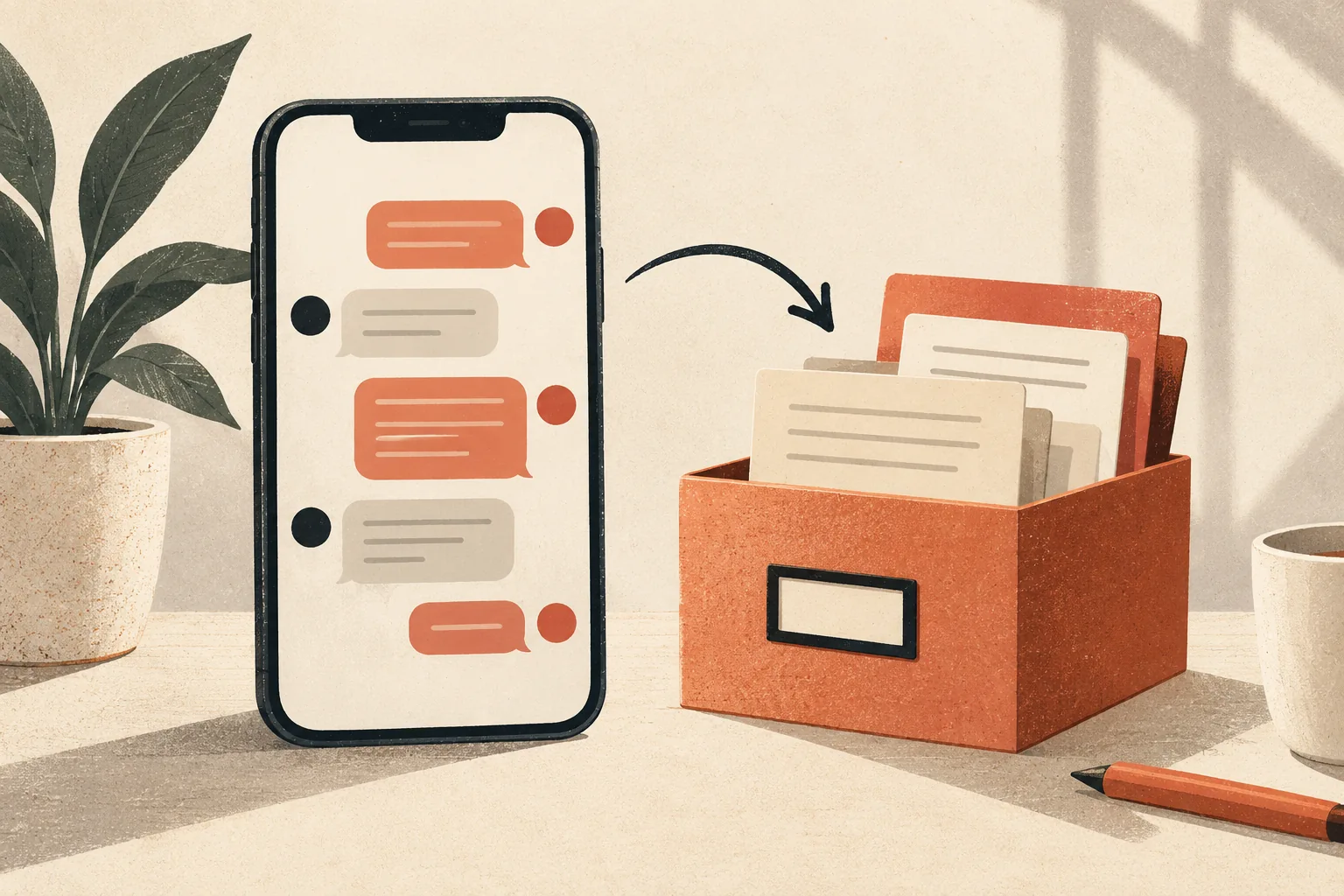
To export Instagram chat messages, open Instagram settings → Accounts Center → Your information and permissions → Export your information. Create an export for the correct Instagram profile, select Messages, choose a date range and HTML or JSON format, then request the download. When the archive is ready, download and extract it on your device to find the conversation you need.
Menu names and ordering can vary by account, device and app version. You may see Meta Account, Download your information, or Download or transfer information instead of the labels above. Follow the export options shown on your own screen, and use only an account you are entitled to access.
If you want to understand the report format before sharing anything, open the fictional sample report. You can also review privacy and safety or return to the What Brandon Thinks homepage. The report workspace accepts a single supported Instagram conversation JSON file after you extract it; it does not accept the full Instagram archive.
What you need before exporting Instagram messages
You need access to the Instagram account whose information you want to export and enough storage space for the download. Meta may ask you to sign in again or confirm your identity. If several profiles are linked in Accounts Center, check the profile name before starting: an export for the wrong account will not contain the conversation you are looking for.
Decide whether you need a readable copy or a file for a specific application. Choose HTML when your main goal is to open the conversation in a browser. Choose JSON when the destination asks for a structured conversation file. If you are unsure, you can request another export in a different format later; the settings you actually see control what is available for your account.
The account-level download can contain more than one conversation. It is worth choosing only the necessary information categories and date range, then keeping the downloaded ZIP private. The safety guide explains the kinds of personal information to consider before sharing a chat with any service.
How to export Instagram chat on iPhone or Android
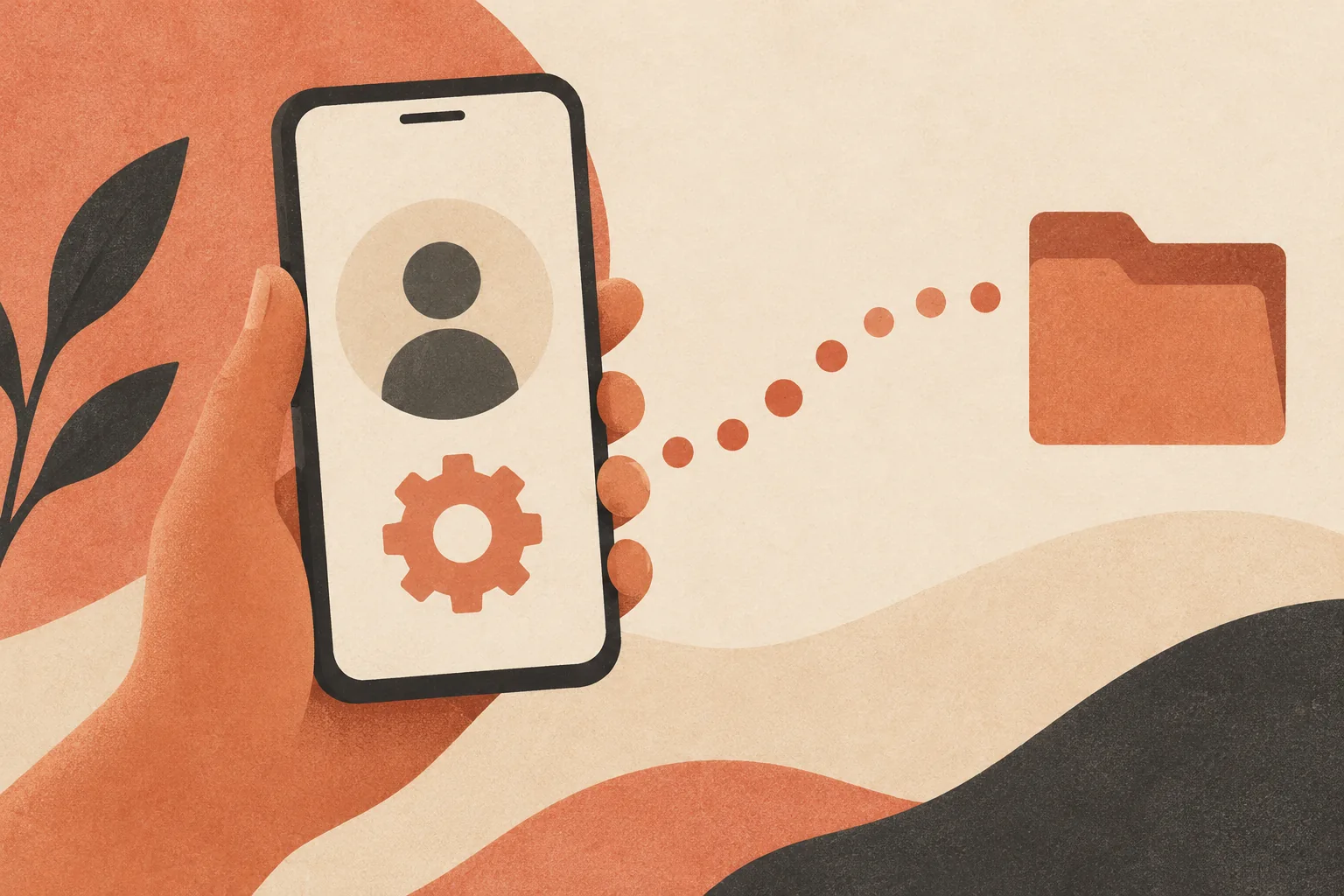
Illustration: the export starts in account settings; it is not an Instagram screenshot.
- Open Instagram and go to your profile.
- Open the menu in the upper-right corner and enter Settings and activity or the settings page shown in your app.
- Open Accounts Center or Meta Account, then Your information and permissions.
- Choose Export your information. Some versions show Download your information instead.
- Select Create export or the equivalent option and choose the Instagram profile whose messages you need.
- Choose Export to device if that option is offered. Under the information selection, choose Messages and deselect unrelated categories where the interface allows it.
- Review the date range, format, notification address and media options. Choose HTML for reading or JSON for a compatible app.
- Start the export and wait for Instagram to say the file is ready. Return to the export screen to download it.
A useful path to look for is:
Instagram profile → menu → Accounts Center
→ Your information and permissions → Export your information
→ Instagram profile → Export to device → Messages
The exact screens may place the account choice or customization options in a different order. If the export option has a different name, look under Your information and permissions rather than assuming it has been removed. Do not enter your password into an unfamiliar site that claims to prepare the export for you.
How to download Instagram messages on a computer
On a desktop browser, sign in to Instagram, open More or your profile menu, and go to settings. Open Accounts Center, then Your information and permissions and the information export option. Choose your Instagram profile, select the available message category, set the format and date range, and submit the request.
The browser flow may be more convenient for a large archive because a computer makes it easier to extract folders and search filenames. The request still concerns your Instagram account; using a laptop does not automatically make the export more complete. Check the same date range and message selection you would check on a phone.
When the download is ready, use the status in Accounts Center or Instagram’s own notification. Treat an unexpected email as a prompt to open Instagram yourself, not as a reason to enter credentials through a link you cannot verify.
Choose the right export settings
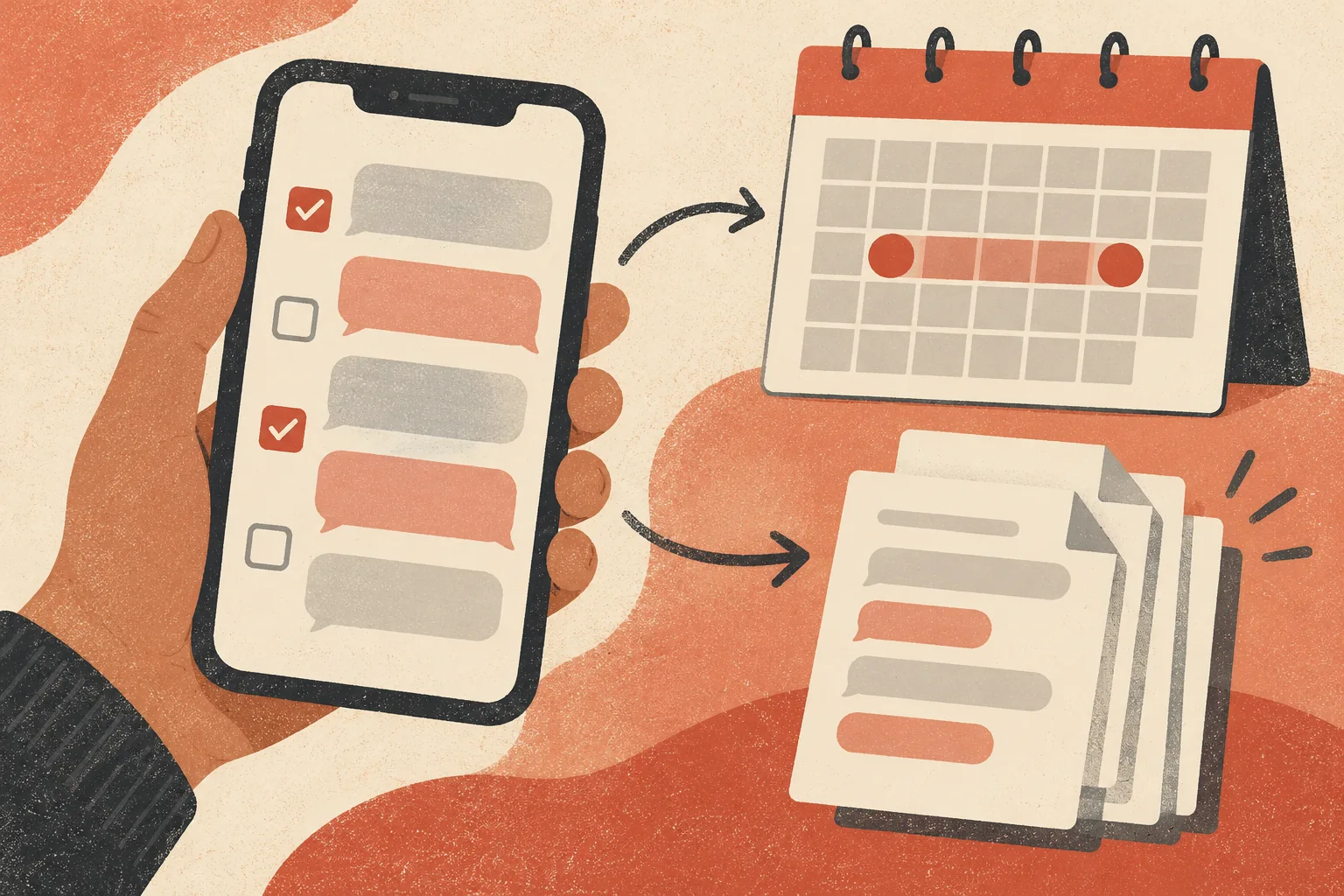
Illustration: select the information and time period you actually need.
Select Messages and the correct account
Where Meta offers category selection, choose Messages. An account-wide download can include unrelated profile or activity information, so review what is selected before submitting. If you use multiple profiles, verify the Instagram account as well as the category. After download, inspect the files rather than assuming every selected category was included.
Choose a useful date range
Use the period that includes the conversation you want. All time, where available, is useful when you need an archive spanning several years. A shorter range can produce a smaller, more focused file, but it can omit earlier context or the exchange you meant to keep.
Before you request the file, make a simple note:
Account: the Instagram profile that owns the conversation
Category: Messages, if available
Dates: the period that contains the exchange I need
Purpose: read a copy, or use an app that accepts JSON
A date range is a boundary, not a guarantee that every message is available. If you find a missing period later, check whether the export dates cover it before submitting a new request.
Review media and file size
Photos, videos and voice notes can make an archive substantially larger. If you only need message text, choose the least media-heavy option available and check the resulting archive. Lower media quality is not the same as excluding media entirely. What Brandon Thinks processes text, sender names and timestamps from a selected Meta JSON file; it does not analyze the attached photos, voice notes, videos or reactions.
HTML or JSON: which format should you choose?
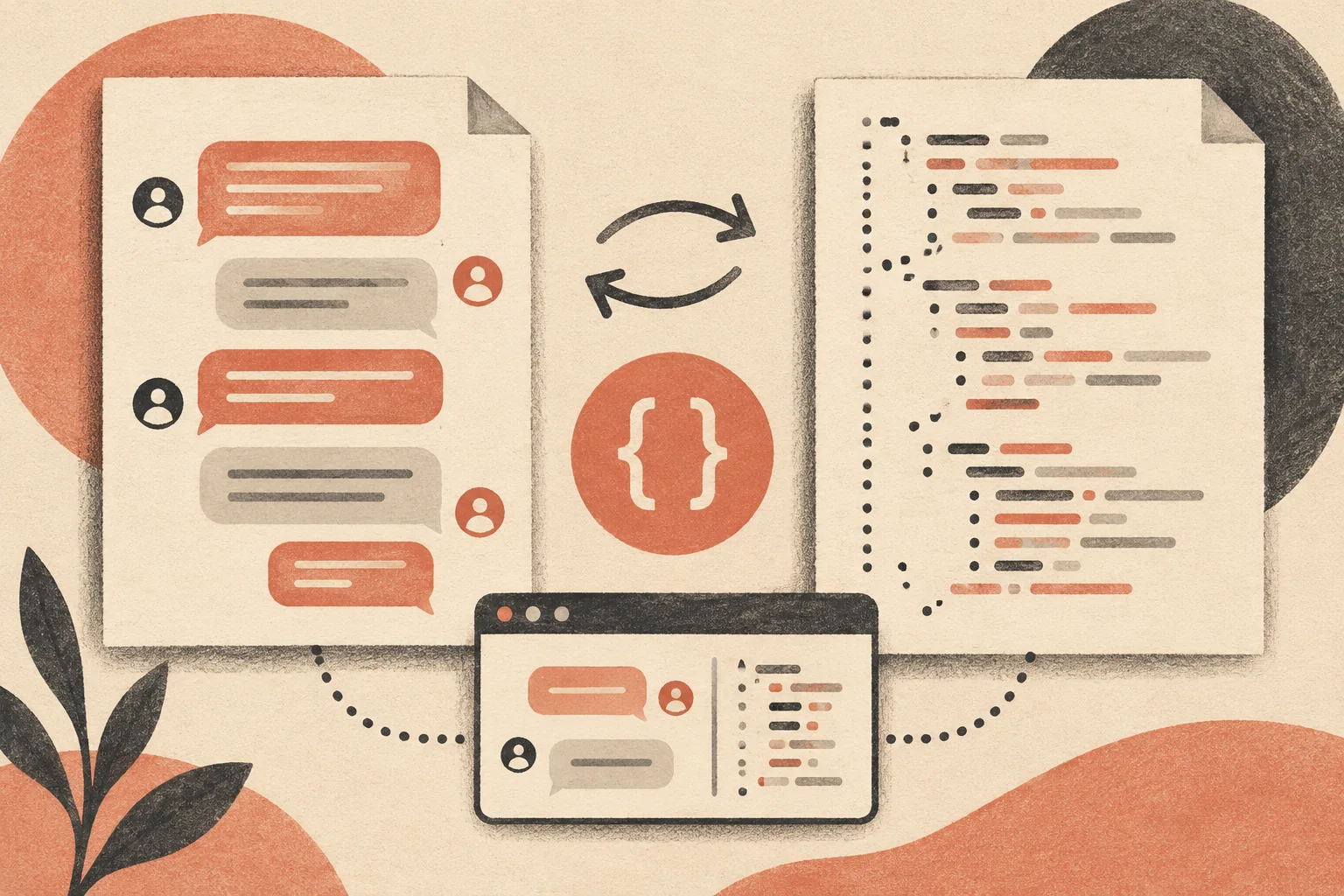
Illustration: one format is intended for reading; the other stores structured fields.
HTML is a practical choice if you want to browse your archive yourself. After extracting the download, open the relevant HTML file in a browser. It may show messages in a more readable layout than raw data, although the appearance and available content can vary.
JSON represents the data as structured fields. It is useful when a tool says it supports Meta message JSON. A JSON file can contain message text, sender names and timestamps alongside other fields; applications decide which of those fields they actually use. Selecting JSON does not make every tool compatible with the file.
Use this decision rule:
I want to read the conversation myself → HTML is usually easier.
An application specifically requests Meta conversation JSON → choose JSON.
I need both uses → consider separate exports if the available options require it.
What Brandon Thinks accepts a single conversation JSON file, not an Instagram HTML page or a full Meta ZIP. The browser prepares a text-only version of that selected file before upload. The product review describes what the report can and cannot establish after a supported file is submitted.
When will the download be ready?
The export is not necessarily available immediately. Preparation time depends on the account and request, so check the status in Accounts Center and watch for the notification associated with that request. Avoid promising yourself a same-day download if you need the archive for a deadline.
When it is ready, download it promptly and note any expiration notice shown on your screen. Meta may require you to authenticate again. If the request is still processing, leaving and checking the status later is safer than repeatedly submitting duplicate requests. If an available file has expired, make a new request and verify the settings before submitting.
Find one Instagram conversation inside the ZIP
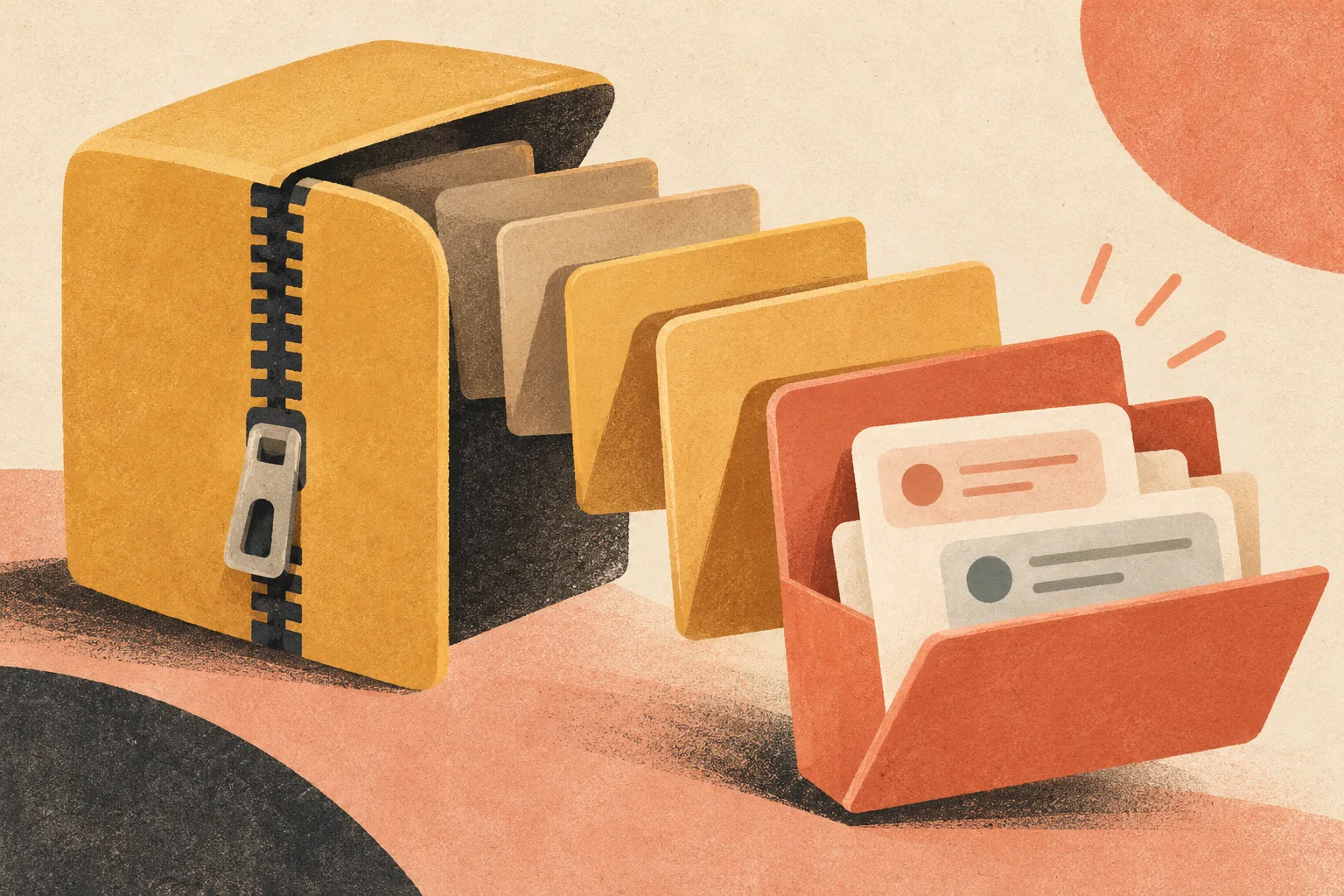
Illustration: an account archive can contain several conversation folders.
Download the ZIP to a device you control and extract it. On a computer, use the built-in archive tool. On a phone, use the file manager’s extraction option if available. Search within the extracted files for a folder named messages and then look for an inbox folder or conversation folders. Names and nesting may vary between exports.
A typical structure can look like this; it is an example, not a promise that every export uses the same path:
instagram-export.zip
└── your_instagram_activity/
    └── messages/
        └── inbox/
            └── conversation_folder/
                ├── message_1.json
                └── message_2.json
Open the folder that corresponds to the person or group you intend to review. A folder can contain multiple numbered files. Check each part before assuming the first file contains the entire history. For an HTML export, look for a corresponding .html message file instead. If you cannot identify the right folder by name, open the file locally and check the participants rather than uploading unrelated conversations.
Can you export just one Instagram chat?
The Accounts Center flow is generally an account-information export rather than a button inside one direct-message thread. The archive may therefore include several conversations even when you select Messages only. Extracting the file and choosing the relevant conversation folder gives you a way to work with a smaller portion afterward.
Do not forward the entire archive to someone who only needs a single conversation. A file named for one person may still include messages from other participants in a group chat; inspect it before sharing.
Use one Instagram JSON file with What Brandon Thinks
After requesting a JSON export, extract the ZIP on your own device. In the report workspace, choose Instagram and select one conversation file such as message_1.json, up to 25 MB and 50,000 message entries. Confirm the participants and continue through the report flow.
The browser extracts the selected file’s message text, sender names and timestamps before upload. It does not upload the whole account ZIP or attached media. The report can only use the text in the one selected JSON file: if a conversation is split into message_1.json, message_2.json and other parts, this version does not combine them. Check which part contains the period you care about before choosing it.
Accepted: one extracted Instagram conversation .json file, up to 25 MB and 50,000 entries
Not accepted: the full Instagram ZIP, HTML files or several files combined
Analyzed: text messages, sender names and timestamps in the selected part
Not analyzed: attachments, reactions, other conversations and other parts
A short or incomplete file can produce a limited preview. Even a complete text export cannot show everything that happened offline or prove someone’s private intentions. Read the guide to checking a report for a practical way to compare a finding with its source messages. For a product overview, see what What Brandon Thinks does.
What if messages or media are missing?
Start with the scope of your request, then compare the download with the conversation visible in Instagram. An archive is a copy of the information made available for that export, not a guaranteed restoration of everything ever sent.
- An older period is missing: Confirm the requested date range and inspect every numbered conversation file.
- The wrong people appear: Check that you chose the intended account and conversation folder.
- You cannot find message text: Confirm Messages was selected and that you extracted the ZIP. Search for
message_1.jsonor HTML message files. - Photos or voice notes are absent: Check the archive and media settings. Availability and file organization can vary.
- A deleted or unsent message is missing: An export is not a dependable recovery method; the message may no longer be available.
Some encrypted or disappearing content may be unavailable in a standard export or require a different recovery flow. The available options can change, so check the current instructions in your own account rather than assuming every historical message can be recovered. Avoid third-party tools that promise to retrieve deleted messages in exchange for your Instagram password.
Troubleshoot an Instagram export that will not open or upload
The archive is still being prepared
Return to the information export page and check the request status. Confirm that you are signed in to the profile used for the request. If you receive an email but the button seems suspicious, open Instagram independently and navigate to Accounts Center yourself.
The ZIP opens but the conversation is hard to find
Extract the entire archive into a private folder first. Search inside it for messages, inbox or message_1. Account export layouts can change, so use those as starting points rather than fixed paths. If a group has changed names, check participants inside candidate files. Do not delete the original archive until you have verified your copy.
The destination says the format is unsupported
Make sure you downloaded JSON if the destination requires JSON. What Brandon Thinks currently accepts one extracted conversation JSON file, not an account-wide Instagram ZIP or an HTML document. Check that the file contains messages, sender names and timestamps and is no larger than 25 MB. If the data is not in that shape, request another export or use the original file for your own reference.
Only part of a long chat appears
Look for additional numbered files in the same conversation folder. Each file may cover a different portion of the history. This version of What Brandon Thinks reads only the selected file; it does not merge multiple parts. Choose the part containing the relevant period, and avoid presenting the result as an assessment of the entire relationship.
The app does not show an expected option
Update the Instagram app if appropriate, try the same account from a browser, and look for alternate labels such as Meta Account or Download your information. Availability can vary across accounts. If you cannot access the account, use Instagram’s account recovery process; another person’s messages should not be accessed without authorization.
Keep your Instagram chat export private

Illustration: the extracted files may be just as sensitive as the original archive.
A downloaded archive can contain messages from several people, names, dates and other details. Consider whether the other people in the chat would reasonably expect you to share their messages, and choose the smallest relevant file. Read the privacy terms for the exact service you plan to use.
Before sharing a file, check the following:
[ ] I selected the account and conversation I intended to use.
[ ] I reviewed the date range and removed unrelated sensitive details where possible.
[ ] I understand which parts, media and metadata will be processed.
[ ] I reviewed storage, retention and deletion terms for the destination.
[ ] I know where the ZIP and extracted copies are stored on my devices.
Keep a private backup if you need one, but avoid leaving copies in shared folders or on a public computer. Deleting the ZIP does not necessarily delete the extracted folder or copies synced elsewhere. When you no longer need an analysis, use the destination’s deletion controls and review any local or cloud copies separately. The What Brandon Thinks privacy page and safety guide describe the product’s current data handling.
Frequently asked questions
How do I export Instagram chat messages?
Open Instagram settings, go to Accounts Center, then Your information and permissions and Export your information. Choose the Instagram profile, select Messages where available, choose a date range and format, and download the file once the request is ready.
Can I download one Instagram conversation?
You can locate one conversation after extracting the account archive. The export request may contain more than one chat, so inspect the folder and file before sharing it.
Should I use HTML or JSON?
HTML is generally easier to read in a browser. JSON is useful when an application specifically supports Instagram conversation data in JSON form. Check the receiving tool’s requirements before requesting the export.
How long does an Instagram export take?
Preparation time varies with the account and request. Check the status in Accounts Center and download the file when it becomes available. The export screen may show an expiration deadline.
Can I recover deleted or unsent messages from an export?
Do not rely on an export as a recovery tool. Deleted, unsent, disappearing or otherwise unavailable messages may be absent. Check the downloaded file against what is available in your account.
Does What Brandon Thinks support Instagram messages?
Yes. It accepts one extracted Instagram conversation JSON file up to 25 MB. The selected file’s text messages, senders and timestamps are processed; attached media, reactions and other numbered parts are not analyzed.
Can I upload the whole Instagram ZIP?
No. Extract it locally and select one conversation JSON file. This keeps separate conversations from being mixed together and avoids uploading the account archive.
Can I export a chat if I cannot access the account?
The normal process requires access to the Instagram account and may ask you to confirm your identity. Use Instagram’s account recovery options if you are locked out, and do not try to access someone else’s account.
Choose a file you understand
Exporting is only the first step. Confirm the profile, date range, file format and conversation before doing anything with the download. If you want to see how an evidence-linked report is presented, start with the fictional sample and review privacy and safety. When you are ready to analyze one supported conversation JSON, visit the What Brandon Thinks homepage or open the report workspace.